Start your own micro cloud on a refurbished server with AlmaLinux and OpenNebula
A tested guide to building a private micro cloud on a refurbished server with AlmaLinux and OpenNebula 7.4.1 CE: install, Sunstone, datastores, networks, NUMA pinning, hugepages, and the real errors from the lab run.
A five-to-eight-year-old dual-socket server from the refurbished market can host a private cloud for a small team: self-service VMs, templates, quotas and a web console. This guide builds that on one machine, with free software only: AlmaLinux as the operating system and OpenNebula Community Edition as the cloud layer, with the OpenNebula front-end and the KVM hypervisor on the same box. (The lab test behind this guide split them across two machines; see how this guide was tested.)
It is a long guide because the short ones skip the parts that break. The steps follow the official OpenNebula 7.4 and AlmaLinux documentation, linked in each section and listed at the end; where the documentation and the shipped packages disagree, this guide says so. Steps that were run in the lab test described below are marked Tested, with the real output; steps that were not run are marked Not tested, with the reason. If you are still deciding between platforms, read Proxmox VE, OpenNebula or Rancher? first; this guide assumes you have chosen OpenNebula.
How this guide was tested#
On 27 Nov 2026 the steps were run with OpenNebula 7.4.1 CE on this setup. Read it before you rely on a result, because it was not a clean one-box install:
- Front-end: AlmaLinux 9.8 on a two-socket AMD EPYC server (two NUMA nodes, SELinux enforcing). It was added next to an existing libvirt host that already ran VMs, not installed on an empty machine.
- KVM node: a nested AlmaLinux 9.9 VM (4 vCPUs, 8 GiB, later given two NUMA cells) on an isolated network. The node package was not put on the bare-metal host, because its install script changes libvirt settings that running VMs depend on (see step 3 of the install).
- So the front-end and the hypervisor were on two machines, not one. Behaviour that depends on a true single box (the host reaching itself over SSH, image and VM disks on the same disk) follows the documentation and was not run as one machine.
- Not tested: AlmaLinux 10.3, firmware updates, boot-time 1 GB hugepages, the el10 packages on AlmaLinux 10's
x86_64_v2build,PHYDEVon a real NIC (reproduced with a dummy interface inside the lab node), the switch side of STP, and a FireEdge package upgrade (no newer CE package existed). Each is marked where it appears.
Canonical's MicroCloud documentation is a good model of what a beginner needs: requirements, installation, initialisation, the UI, and local versus distributed storage. MicroCloud builds on LXD, MicroCeph and MicroOVN. This guide follows a similar order, but teaches OpenNebula.
Versions referenced in this guide (checked 26 Nov 2026): AlmaLinux 10.3 "Mauve Lion" and 9.9 "Chartreuse Bobcat", both released on 16 Nov 2026 (AlmaLinux release notes); OpenNebula 7.4.1, the current Community Edition release, published on 10 Sep 2026. OpenNebula 7.4.2 (12 Nov 2026) is an Enterprise-only maintenance release (release schedule), so several 7.4 documentation pages mention fixes that Community users do not have yet.
Do you need a real server, or will a desktop PC do?#
A desktop PC with 32 GB of RAM, enough disk for a few VM images, and a CPU that supports Intel VT-x or AMD-V and meets AlmaLinux's instruction-set baseline (next sections) will run everything in this guide except the two-socket NUMA examples. It is a good way to learn OpenNebula itself.
It will not teach you the server. In production you will meet things a typical consumer desktop does not have:
- Out-of-band management (Dell iDRAC, HPE iLO, Supermicro IPMI). You will use it to reinstall, to watch the console when you break the network, and to power-cycle a hung machine from home.
- RAID controllers and HBA mode. Many refurbished servers arrive with a hardware RAID controller. You decide whether disks go through RAID or straight to the OS.
- BIOS settings that change VM performance: NUMA presentation, power profiles, virtualization extensions, SR-IOV.
- Firmware. BIOS, controller, NIC and out-of-band firmware all need updating, in the order the vendor gives.
- ECC memory, two CPU sockets and server NICs, with their own offload settings and driver quirks.
If the goal is to run customer or company workloads later, learn on the class of hardware you will run them on.
What should you check on a refurbished server before installing anything?#
Do these before the operating system goes on. Each is harder to change later.
- CPU instruction level. The x86-64 level the CPU supports (v2 or v3) decides which AlmaLinux build you should install (next section). Note the exact CPU model from the BIOS or iDRAC/iLO system page.
- Firmware. Bring BIOS, storage controller, NIC and out-of-band controller firmware up to date, in the order the vendor's release notes give for your exact model; there is no universal order. Use the vendor's tooling (Dell Lifecycle Controller, HPE Service Pack for ProLiant, Supermicro's BMC). Not tested: the test server was already running workloads, so no firmware was changed; follow your vendor's release notes.
- Virtualization in BIOS. Enable Intel VT-x/VT-d or AMD-V/AMD-Vi (IOMMU). Without VT-x/AMD-V, KVM does not start.
- NUMA presentation. On Dell servers, leave Node Interleaving disabled. Dell's own tuning guide explains that disabled means NUMA mode is on, and enabling it interleaves memory across nodes so the OS sees no NUMA layout; in Dell's measurements on 12th-generation servers, enabling it cut STREAM memory bandwidth by almost 25% (Dell 12G BIOS tuning guide). OpenNebula's pinning features later in this guide depend on the OS seeing the real NUMA layout. HPE and Supermicro name the interleaving setting differently. Newer CPUs also offer sub-NUMA clustering (Intel SNC, AMD NPS), a separate setting that splits each socket into more than one NUMA node; know which one you have before reading
lscpu. - Power profile. Servers often ship with a balanced performance-per-watt profile; check what yours is set to. A performance profile usually gives steadier VM latency at the cost of power. Choose deliberately and write it down.
- RAID or HBA. For a single server with local storage, either a hardware RAID 1/10 volume or HBA mode with software RAID (mdadm) is valid. Some controllers can switch: Dell's PERC 9 family (H330, H730, H830) supports changing from RAID to HBA mode, after you delete the virtual disks and meet the other prerequisites Dell lists, such as dealing with hot spares, foreign configurations, failed disks and SED keys. The switch takes a reboot, and in HBA mode the controller no longer reports SMART errors (Dell PERC 9 guide; PDF). Older controllers may not offer HBA mode at all. Decide before installing, because switching means deleting the existing virtual-disk configuration first.
- Memory. Populate DIMMs evenly across both sockets. A two-socket server with all RAM on one socket gives you one NUMA node with memory and one without, which breaks the pinning examples later. If you are buying RAM, see server DDR5 RDIMM prices, November 2026.
- Network. Plan at least one port for management and VM traffic. A second port, or the dedicated iDRAC/iLO port, gives you a way back in when a bridge change goes wrong.
AlmaLinux 10 or AlmaLinux 9: which one fits your CPU?#
This is an important compatibility trap with refurbished hardware.
Red Hat raised the x86 baseline for RHEL 10 to x86-64-v3 (roughly: AVX2-class CPUs). AlmaLinux 10 follows that for its default x86_64 build, and also ships a separate x86_64_v2 build for older hardware. The AlmaLinux 10.0 release notes add an important limit: third-party packages for RHEL 10 target x86-64-v3, so the v2 build "will only be suitable for workloads where using the default OS package set is enough" (AlmaLinux 10.0 release notes). OpenNebula's packages are third-party packages in that sense.
Check the CPU from a recent x86-64 Linux live USB that uses glibc (Fedora, AlmaLinux or a current Ubuntu live image):
/lib64/ld-linux-x86-64.so.2 --help | grep supported
If the output lists x86-64-v3 (supported, searched), use AlmaLinux 10.3. If it stops at x86-64-v2, use AlmaLinux 9.9. OpenNebula 7.4 certifies both AlmaLinux 9 and 10 for the front-end and for KVM nodes (OpenNebula platform notes), and AlmaLinux 9 has security support until 31 May 2032. Not tested: whether the OpenNebula 7.4.1 el10 packages run on the AlmaLinux 10 x86_64_v2 build. Until someone runs it, treat v2-only CPUs as AlmaLinux 9 machines.
If you install the wrong one, the installer or the first boot can fail with this pair of lines:
Fatal glibc error: CPU does not support x86-64-v3
Kernel panic - not syncing: Attempted to kill init! exitcode=0x00007f00
That exact pair of lines is reported in the accepted answer of this Server Fault thread. You will see the same CPU-baseline panic again inside VMs later in this guide, caused there by the VM's CPU model.
One more reason AlmaLinux suits old servers: its 10.x builds re-add PCI IDs that upstream RHEL 10 disabled in drivers such as megaraid_sas (Broadcom/Dell PERC MegaRAID), mpt3sas, hpsa (HP Smart Array) and mlx4_core (ConnectX-3) (AlmaLinux 10.0 release notes). If your controller is on that list, the AlmaLinux installer can see disks that a plain RHEL 10 installer might not.
How do you install AlmaLinux for an OpenNebula micro cloud?#
Installer choices#
- Media: the minimal or boot ISO for your chosen release and architecture. Mount it through iDRAC/iLO virtual media or write it to USB.
- Software selection: Minimal Install. OpenNebula brings what it needs.
- Hostname: set a real fully qualified name now (for example
cloud1.lab.example). OpenNebula's local datastore requires that the front-end hostname resolves on every host, and that every host can SSH to every other host, including itself (local datastore). On one box that means the machine must resolve and reach its own name. - Time: keep chrony enabled.
Partitioning#
OpenNebula keeps images and running VM disks under /var/lib/one/datastores by default (front-end directory layout). On a single server, give that path most of the disk:
| Mount point | Suggested size | Why |
|---|---|---|
/boot/efi, /boot | installer defaults | |
/ | 50–80 GB, XFS | OS, packages, logs |
/var/lib/one | everything else, XFS on LVM | image datastore and VM disks |
| swap | small (4–8 GB) | VMs should not be swapping |
Using LVM for /var/lib/one lets you grow it later. You will need it: with the default local driver, every VM gets its own full copy of its image, which then grows as the guest writes (measured figures are in the datastore section).
Networking: put the host IP on a bridge#
VMs on the bridged network driver attach to a Linux bridge on the host (KVM node networking). On a single-NIC server, the host's own IP has to move from the NIC to the bridge.
Do this from the iDRAC/iLO console, not over SSH. When the new bridge profiles activate, the address moves from the NIC to the bridge, and an SSH session on that IP can be interrupted.
The commands follow Red Hat's RHEL 10 procedure (Configuring a network bridge). Replace eno1 with your NIC name from nmcli device status, and the 192.0.2.x documentation addresses with yours:
nmcli connection add type bridge con-name br0 ifname br0
nmcli connection add type ethernet port-type bridge con-name br0-port1 ifname eno1 controller br0
nmcli connection modify br0 ipv4.addresses '192.0.2.10/24' ipv4.gateway '192.0.2.1' ipv4.dns '192.0.2.53' ipv4.method manual
nmcli connection modify br0 connection.autoconnect-ports 1
nmcli connection up br0
Then deactivate the old profile that still holds the NIC (its name is shown by nmcli connection show; often it is the NIC name itself), and check:
ip link show master br0
ip address show br0
Red Hat's guide notes that STP is enabled by default on a new bridge. Tested on AlmaLinux 9.9 (NetworkManager 1.54, with a dummy interface instead of a real NIC): the new bridge came up with STP on and a 15-second forward delay, and stayed DOWN while STP listened:
Connection successfully activated (controller waiting for ports) (D-Bus active path: /org/freedesktop/NetworkManager/ActiveConnection/32)
# nmcli -g bridge.stp,bridge.forward-delay connection show br0
yes
15
With one uplink and no loops on the host side, STP only adds a delay before the port forwards (the listening and learning states each last one forward delay, so about 30 seconds), so on a single-uplink server you can turn it off with nmcli connection modify br0 bridge.stp no; agree this with whoever runs the switch. Bridges that OpenNebula creates itself come up with STP off (stp_state 0). Not tested: the switch-side setting.
The same nmcli syntax works on AlmaLinux 9.9 (tested): port-type/controller and connection.autoconnect-ports 1 were accepted, and so were the older slave-type/master options.
SELinux#
Leave SELinux enforcing. OpenNebula's own KVM node guide says it is "not recommended to disable" SELinux in production and that problems should be investigated individually; it also notes the boolean virt_use_nfs is needed if datastores are on NFS (KVM node installation). Tested: the whole run was done with SELinux enforcing on both machines. ausearch -m avc -ts recent showed no denials on the front-end. The node showed one, from the NGINX reverse proxy (Sunstone quirk 5), which a boolean fixes; nothing needed SELinux turned off. If you run ausearch inside a script fed through ssh host 'bash -s' <<EOF, add --input-logs, because otherwise it reads the rest of the script from standard input.
firewalld#
Open only what you need, in the zone your bridge is in (check with firewall-cmd --get-active-zones; the commands below change the default zone, so add --zone=<zone> if br0 is elsewhere). On one box, OpenNebula's internal traffic (the daemon on 2633, monitoring on 4124, VNC on 5900+) stays on the machine and does not need to be opened to the network. Keep it that way: after installation oned (2633, and gRPC on 2634) and guacd (4822) listen on all addresses, not only on localhost (tested). If the hypervisor is a separate machine, even a VM, it must reach the front-end on 4124; see push monitoring.
firewall-cmd --permanent --add-port=2616/tcp     # Sunstone (FireEdge)
firewall-cmd --reload
On a fresh install, SSH (22) is already open in the default public zone; check yours with firewall-cmd --list-services. Port meanings are in the front-end firewall table. If you later put Sunstone behind a reverse proxy on 443, close 2616 again.
Check that KVM is available#
lscpu | grep -i virtualization
ls -l /dev/kvm
If /dev/kvm is missing, virtualization is usually off in the BIOS; less often, the kvm_intel or kvm_amd module did not load (check lsmod | grep kvm).
How do you install OpenNebula 7.4 Community Edition on AlmaLinux?#
Commands run as root unless a block starts with su - oneadmin; leave that shell with exit before the next root step. They follow the CE repository page, the front-end installation page and the KVM node page.
Step 1: repositories#
EPEL and the CodeReady Linux Builder (CRB) repository provide dependencies:
yum -y install epel-release
crb enable
The official CE repository page runs only crb enable; EPEL is added on the front-end and KVM node pages. Tested on AlmaLinux 9.8 and on a 9.9 cloud image: the crb helper belongs to the EPEL package, so it does not exist until epel-release is installed:
# rpm -qf /usr/bin/crb
epel-release-9-11.el9.noarch
That is why this guide installs EPEL first. AlmaLinux 10 enables CRB by default (AlmaLinux 10.3 release notes), so on 10.x the second command only confirms it. Not tested: a minimal-ISO install, and AlmaLinux 10.3.
CRB is not optional for the front-end. Without it, the install fails (tested, AlmaLinux 9.8, output trimmed):
Error:
 Problem: conflicting requests
  - nothing provides libxmlrpc++.so.8()(64bit) needed by opennebula-7.4.1-1.el9.x86_64 from opennebula
  - nothing provides libxmlrpc_client++.so.8()(64bit) needed by opennebula-7.4.1-1.el9.x86_64 from opennebula
  [...]
  - nothing provides xmlrpc-c-c++ needed by opennebula-7.4.1-1.el9.x86_64 from opennebula
  - nothing provides xmlrpc-c-client++ needed by opennebula-7.4.1-1.el9.x86_64 from opennebula
With CRB enabled, the same transaction resolved to 102 new packages and 3 upgrades: the front-end's dependency chain pulls in libselinux-devel, which upgraded libselinux, libselinux-utils and python3-libselinux from 3.6-3 to 3.6-4. Expect the install to update a few base packages, not only add new ones.
Add the OpenNebula CE repository exactly as the docs give it for AlmaLinux:
cat << "EOT" > /etc/yum.repos.d/opennebula.repo
[opennebula]
name=OpenNebula Community Edition
baseurl=https://downloads.opennebula.io/repo/7.4/AlmaLinux/$releasever/$basearch
enabled=1
gpgkey=https://downloads.opennebula.io/repo/repo2.key
gpgcheck=1
repo_gpgcheck=1
EOT
yum makecache
The 7.4 path served the 7.4.1 packages on 26 Nov 2026. Note the quoted "EOT": it stops the shell from expanding $releasever and $basearch, which yum must see literally. A forum user who got a login page returning HTTP 500 traced it to a repository file pointing at an older OpenNebula release than the guide they were following (forum). Every OpenNebula package must come from the same release.
Step 2: database (decide now)#
OpenNebula uses SQLite by default and needs no setup for it. The database page says SQLite is "not recommended for production use" and that migrating to another database type later is "complex or impossible" (database setup); the front-end page suggests using MySQL/MariaDB "from the very beginning" (front-end installation, step 4). For a lab, SQLite is fine. For anything you intend to keep, install MariaDB, create the oneadmin database user as the database page shows, and set the DB = [ BACKEND = "mysql", ... ] block in /etc/one/oned.conf before the first start.
Step 3: install the front-end and the KVM node packages on the same machine#
yum -y install opennebula opennebula-fireedge opennebula-gate opennebula-flow
yum -y install opennebula-node-kvm
systemctl status virtqemud.socket
Do not run systemctl restart libvirtd here. Older guides, and the KVM node page's Debian/Ubuntu section, still tell you to; the page's AlmaLinux/RHEL 9 and 10 section says the package sets up the modular daemons, "so no manual restart is needed" (KVM node installation). The 7.4.1 opennebula-node-kvm package for EL10 configures the modular libvirt daemon: its install script disables the monolithic libvirtd units, enables virtqemud through socket activation, and notes that monolithic libvirtd is "deprecated on EL9 and removed on EL10". It also enables and starts the virtnetworkd, virtnodedevd, virtsecretd and virtstoraged sockets. Verified by downloading the el10 RPM and dumping it with rpm -qp --scripts (not installed); its scripts and file list are identical to the el9 package used in the test (from the package's own scriptlet, opennebula-node-kvm-7.4.1-1.el10). After later changes to libvirt settings, restart virtqemud, not libvirtd.
Tested on AlmaLinux 9.9: the EL9 package carries the same script, and on 9.9 the restart gives no error at all, which is worse than an error:
# systemctl restart libvirtd; echo "rc=$?"
rc=0
# systemctl is-active libvirtd libvirtd.socket virtqemud.socket virtqemud
active
active
inactive
inactive
# systemctl is-enabled libvirtd libvirtd.socket
disabled
disabled
The command returns 0, starts the monolithic daemon the package had just disabled, and leaves virtqemud.socket inactive. It also started libvirt's stock default NAT network. Once that libvirtd is stopped again, nothing answers:
# virsh -c qemu:///system list --all
error: failed to connect to the hypervisor
error: Failed to connect socket to '/var/run/libvirt/virtqemud-sock': No such file or directory
To recover, start the modular sockets by hand:
systemctl stop libvirtd.service libvirtd.socket libvirtd-ro.socket libvirtd-admin.socket
systemctl start virtqemud.socket virtqemud-ro.socket virtqemud-admin.socket virtnetworkd.socket virtnodedevd.socket virtsecretd.socket virtstoraged.socket virtlogd.socket virtlockd.socket
virsh -c qemu:///system list --all
Not tested: AlmaLinux 10.3, where monolithic libvirtd is removed.
If the server already runs VMs under libvirt, read the node package's install script before installing it (dnf download opennebula-node-kvm, then rpm -qp --scripts on the file). The 7.4.1 script (read and tested on 9.9; the el10 script is identical) sets user and group (and swtpm_user and swtpm_group) to oneadmin and dynamic_ownership = 0 in /etc/libvirt/qemu.conf, sets auth_unix_ro and auth_unix_rw to none, unix_sock_group to oneadmin and the socket permissions to 0770 in virtqemud.conf (the KVM node page notes that under socket activation those three socket options have no effect; socket ownership comes from virtqemud.socket), try-restarts virtqemud if it changed either file, and installs /etc/sysctl.d/bridge-nf-call.conf, which sets net.bridge.bridge-nf-call-iptables, -ip6tables and -arptables to 1 the next time sysctl settings are applied with br_netfilter loaded (the script does not run sysctl itself). Existing VMs whose disk files are owned by qemu can then fail on their next cold start. That is why the lab test kept the hypervisor in a separate VM. On a new, empty server none of this matters.
Security note for KVM nodes (tested in the lab node). Because socket activation ignores the unix_sock_* options while auth_unix_rw = none does take effect, the read-write libvirt socket ended up srw-rw-rw- root root with no authentication. Any local account on the node could then manage qemu:///system; in the lab, an unprivileged account ran read-only commands without polkit or a password:
$ ls -l /run/libvirt/virtqemud-sock*
srw-rw-rw-. 1 root root 0 Nov 26 22:49 /run/libvirt/virtqemud-sock
srw-rw-rw-. 1 root root 0 Nov 26 22:49 /run/libvirt/virtqemud-sock-ro
$ sudo -u nobody virsh -c qemu:///system net-list --all
 Name      State      Autostart   Persistent
 default   inactive   no          yes
Read-write libvirt access is effectively root on the node, so keep KVM nodes free of untrusted local accounts. The KVM node page's own fix is to override SocketGroup and SocketMode with systemctl edit virtqemud.socket (for example SocketGroup=oneadmin, SocketMode=0660, and the same for virtqemud-ro.socket), then restart the sockets. Not tested: that drop-in; test it on a lab node before rolling it out.
In the test, opennebula-guacd (the console daemon) was also named in the front-end install command; if rpm -q opennebula-guacd reports it missing after your install, add it. The package list for 7.4.1 on AlmaLinux 10 contains opennebula-fireedge and no separate Ruby Sunstone package. That matters in the next section.
Step 4: set the oneadmin password before the first start#
Set this before the first start. On first start, OpenNebula creates its internal oneadmin user with a random password read from /var/lib/one/.one/one_auth. To choose your own, write the file before starting the services, as the oneadmin system user (front-end installation, step 5):
sudo -u oneadmin /bin/sh
echo 'oneadmin:<your-long-password>' > /var/lib/one/.one/one_auth
exit
The file sets the database password only on the very first start. After that, the file is just the CLI's login. To change the password later, the docs' procedure is: run oneuser passwd 0 <password> as oneadmin, write the same oneadmin:<password> into one_auth, then restart the opennebula service (change credentials for oneadmin).
Step 5: start, enable and verify#
systemctl enable --now opennebula opennebula-fireedge opennebula-gate opennebula-flow
sudo -u oneadmin oneuser show
The docs start and enable these four services in two separate commands; enable --now does both. If oneuser show prints
Failed to open TCP connection to localhost:2633 (Connection refused - connect(2) for "localhost" port 2633)
the CLI could not reach oned at its endpoint. Usually the daemon did not start; less often the endpoint is set wrongly. Look in /var/log/one/oned.log for lines marked [E].
Tested: after enable --now, the four services were active, and so were opennebula-guacd, opennebula-ssh-agent and opennebula-hem, which start without being enabled by name. In the test, the fresh SQLite database left two [E] lines in oned.log on the first start. They come from the first database setup and can be ignored:
[Z0][ONE][E]: SQL command was: SELECT version FROM local_db_versioning WHERE oid=(SELECT MAX(oid) FROM local_db_versioning), error: no such table: local_db_versioning
[Z0][ONE][E]: SQL command was: SELECT version FROM db_versioning WHERE oid=(SELECT MAX(oid) FROM db_versioning), error: no such table: db_versioning
How do you log in to Sunstone, and why do older guides say port 9869?#
Sunstone is OpenNebula's web interface. Since the 7.x releases it is served by FireEdge, which the docs describe as the server that "replaces the legacy Ruby Sunstone".
| What older guides say | What OpenNebula 7.4 does | |
|---|---|---|
| URL | http://<frontend>:9869 | http://<frontend>:2616/fireedge/sunstone |
| Service | opennebula-sunstone | opennebula-fireedge (plus opennebula-guacd) |
| Config | /etc/one/sunstone-server.conf | /etc/one/fireedge-server.conf and /etc/one/fireedge/sunstone/ |
| Console proxy | noVNC on 29876 | Guacamole (guacd) through FireEdge |
| Logs | sunstone.log | /var/log/one/fireedge.log, /var/log/one/fireedge.error |
Sources: front-end installation, FireEdge configuration. The miniONE evaluation installer adds to the confusion: its guide forwards port 80 to reach Sunstone (miniONE guide). If you installed from packages as above, use 2616.
Log in as oneadmin with the password you wrote into /var/lib/one/.one/one_auth in step 4 (unless you have changed it since).
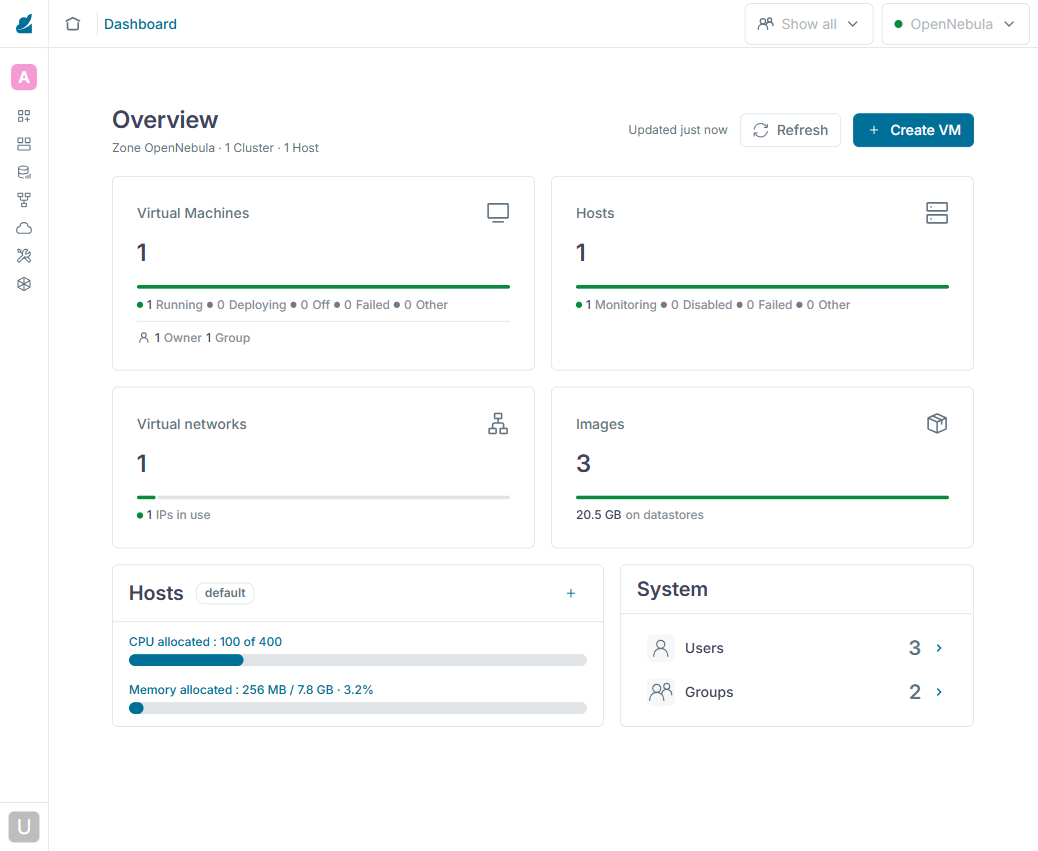
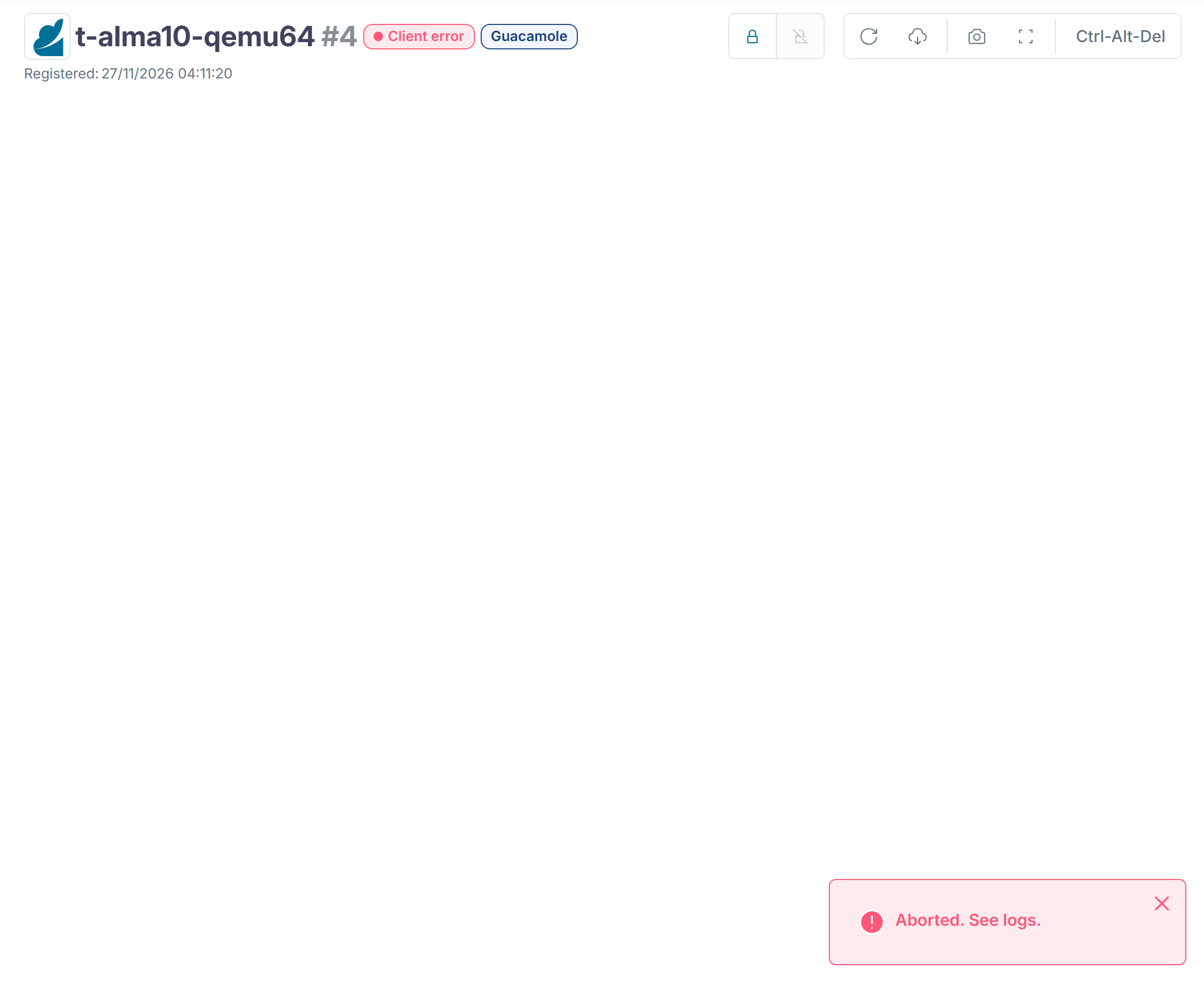
Tested: a wrong password shows the banner Wrong username or password, and the browser's network tab shows POST /fireedge/api/auth/ returning 401. In the test, each load of the login page before logging in also logged two 401 (Unauthorized) responses for /fireedge/api/user/info in the browser console. They are normal checks for an existing session, not a fault to chase. After login you land on the dashboard:
Sunstone quirks, and what to do about each#
These are documented checks; work through them in order. Errors in this area often point somewhere other than the real cause.
- "Wrong username or password" when the password is right. FireEdge can show this message even when the real cause is elsewhere: an OpenNebula GitHub issue documents it when an LDAP server is unreachable (#6813; fixed in 7.4.2, which is Enterprise-only, so Community 7.4.1 still behaves this way). Read
/var/log/one/oned.logfor the actual[E]line before resetting passwords. - Login returns HTTP 500. Check that
one_xmlrpcin/etc/one/fireedge-server.confpoints to the running daemon (http://localhost:2633/RPC2by default; the docs say it must match the ENDPOINT shown byonezone show 0), and that the coreopennebula-*packages come from the same release (rpm -qa 'opennebula*'). Restart FireEdge after any change. A since-closed issue shows the same symptom, HTTP 500 at login on CE 7.0.1 whileonedaccepts the credentials (#7505); it is useful as a symptom reference, not a known 7.4.1 bug. - FireEdge will not start:
Error: listen EADDRINUSE: address already in use 0.0.0.0:2616. Another process holds the port. Changeportin/etc/one/fireedge-server.confor stop the other process (FireEdge troubleshooting). - The web console (VNC) does not open. The VM template needs a
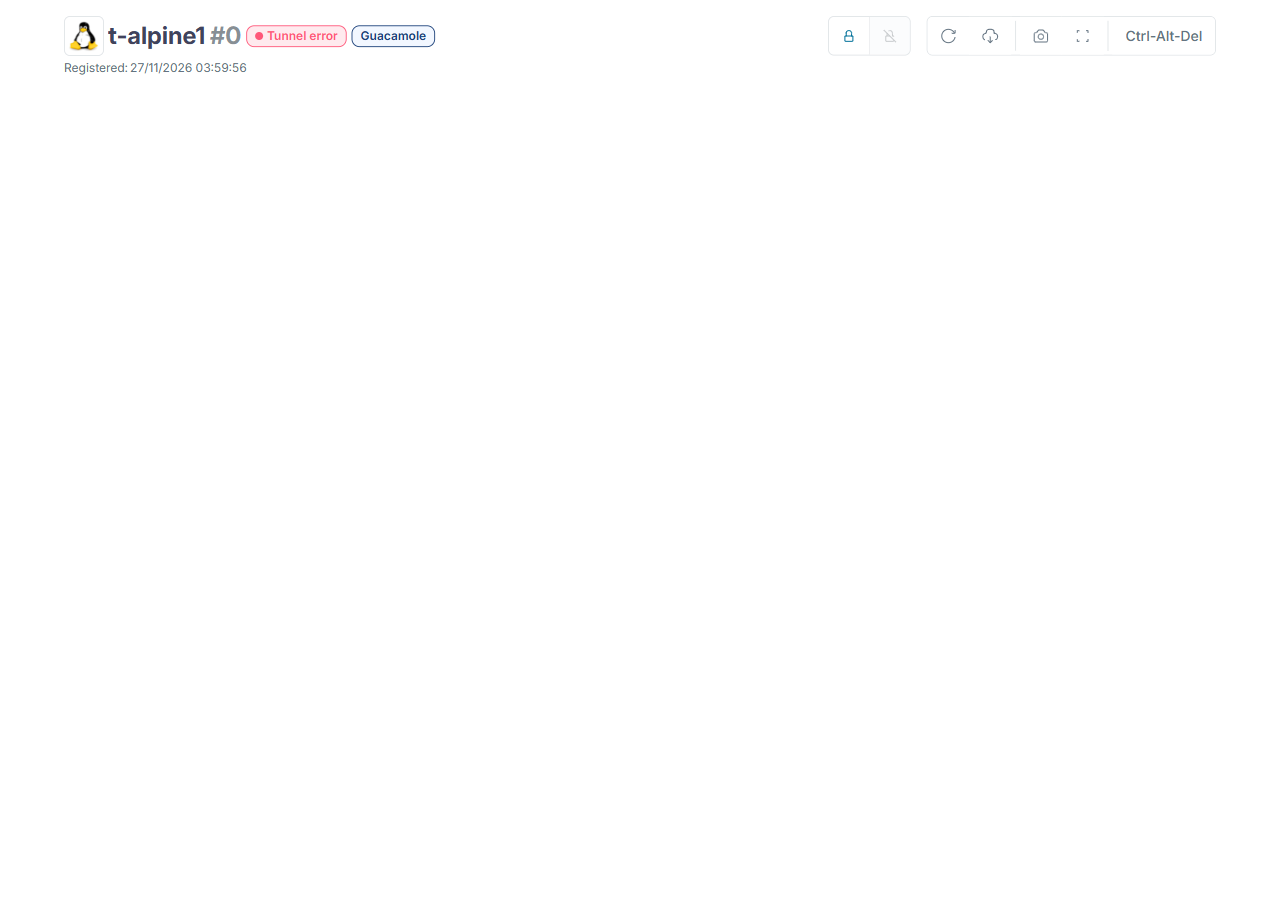
GRAPHICSsection, for exampleGRAPHICS = [ LISTEN = "0.0.0.0", TYPE = "vnc" ], and the Guacamole daemon must be running and able to reach the VNC port on the host (accessing VMs). Your browser must allow WebSockets. If the console is blurry, the Sunstone guide suggests switching the VM's video device tovirtio. On one box, guacd reaches the VNC port on the same machine, so do not open 5900+ to the network. Older forum answers about port 29876 andVNC Server disconnected (code: 1006)refer to the Ruby Sunstone noVNC proxy (example); with FireEdge, checkopennebula-guacdfirst. The 7.4 FireEdge configuration page warns that 7.4.2 requires an updatedguacamoleblock infireedge-server.conf(FireEdge configuration; details in the 7.4.2 resolved issues); 7.4.2 is Enterprise-only, so for Community users it is an upgrade note to recheck when the next CE release notes appear. Tested directly and through NGINX; the 7.4.1 menu path is below. - Reverse proxy and TLS. The docs give Apache and NGINX examples that proxy
/fireedgeto FireEdge on port 2616 and pass WebSocket upgrades (NGINX throughUpgradeandConnection "upgrade"headers, Apache through a rewrite rule tows://) (FireEdge for large deployments). Copy the WebSocket lines exactly; without them the console fails withTunnel error. The NGINX TLS example also usesssl on;, which NGINX removed in 1.25.1 (NGINX changes). The examples are not drop-in AlmaLinux files either: replace the Debiansnakeoilcertificate paths with your own, make the port-80 redirect match the port you chose, and with SELinux enforcing allow the proxy to connect upstream. The tested config and every error it produced are in NGINX in front of FireEdge below. - Instantiation blocked with
VM Group ID must be a string type. A 7.4 known issue: if you type into the VM Group field and clear it, the wizard refuses to instantiate. Cancel and start the wizard again without touching that field (known issues, #8250). - Buttons or tabs missing in some views. Some 7.4 view files under
/etc/one/fireedge/sunstone/views/use legacy key names that hide controls (#7766). The known-issues page lists the exact replacements; edit, thensystemctl restart opennebula-fireedge. - After an upgrade, new features do not appear. Run
onecfg upgrade, then check the Sunstone view files as the release notes describe; the 7.4.1 notes list whichvm-tab.yamlandhost-tab.yamlsettings to enable (7.4.1 resolved issues). If the page still looks like the old version, force-reload it or clear the site's cached data in the browser, then log in again. Not tested: whether a hard reload is needed after a FireEdge package upgrade; on 27 Nov 2026 there was no CE package newer than 7.4.1 to upgrade to. - Session timeouts. FireEdge sessions expire after 180 minutes by default, or 3600 minutes with "remember me" (
session_expiration,session_remember_expiration). Client errorandAborted. See logs.in a console tab. In the test this meant the VM had been terminated while its console tab was open; see the console error on a terminated VM.
Opening the VNC console in 7.4.1#
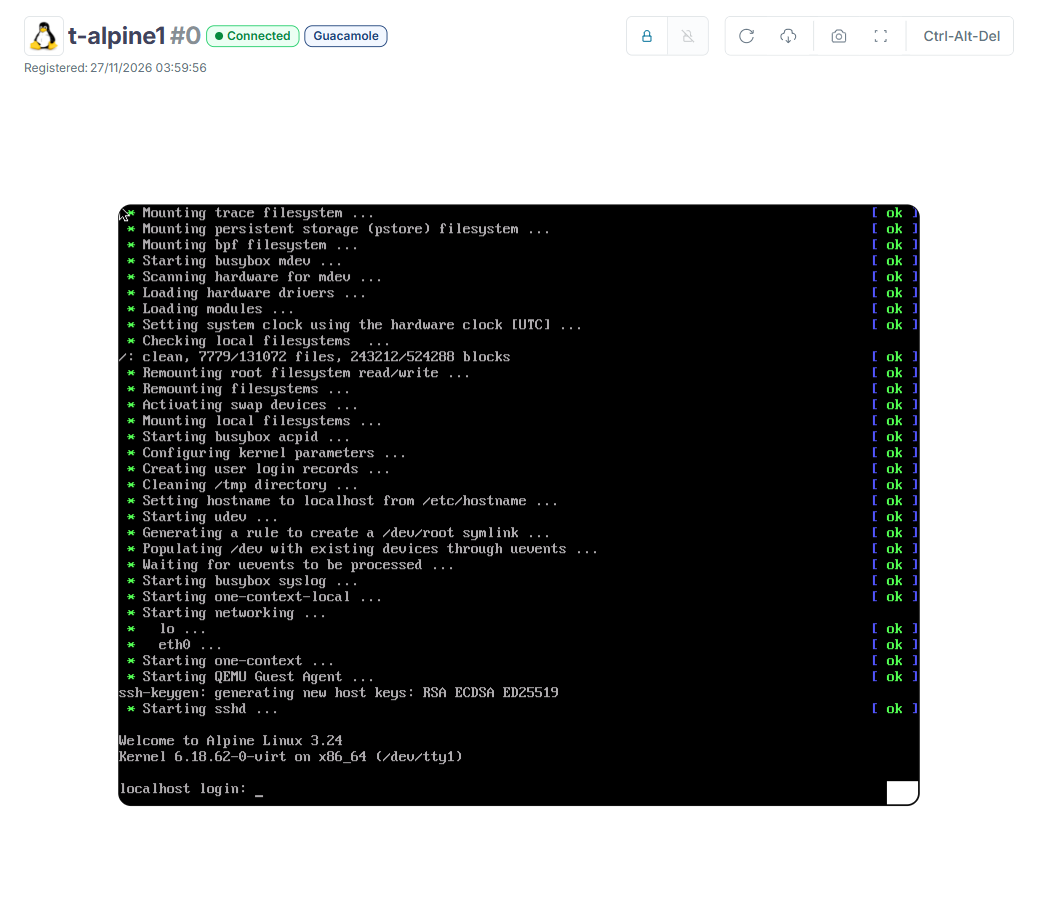
Tested, direct and through NGINX: the console is under Instances › VMs: click the VM's card, then ⋮ (More) › Console › VNC. It opens /fireedge/sunstone/guacamole/<VMID>/vnc?zone=0 in a new tab, and that URL can be bookmarked. A link to the VM page itself, /fireedge/sunstone/virtual-machine/<VMID>, did not open the VM; it redirected to the dashboard.
NGINX in front of FireEdge: the tested config#
Tested on AlmaLinux 9.9, with NGINX 1.20.1 (the default AlmaLinux 9 package) and NGINX 1.26.3 (the nginx:1.26 module stream), SELinux enforcing. This is the docs' NGINX example adapted to AlmaLinux paths; with it and NGINX 1.26.3, login and the VNC console worked over wss://. In the test NGINX reached FireEdge through a forwarded port (12616); the block below shows FireEdge's normal local port, 2616. Replace the certificate paths with yours, and the port if you serve on 443:
map $http_upgrade $connection_upgrade {
    default upgrade;
    ''      close;
}
upstream fire-edge {
    server 127.0.0.1:2616;
}
server {
    listen 8080;
    return 301 https://$host:8443$request_uri;
}
server {
    listen 8443 ssl;
    ssl_certificate     /etc/pki/nginx/one.crt;
    ssl_certificate_key /etc/pki/nginx/private/one.key;
    location /fireedge {
        proxy_pass http://fire-edge/fireedge;
        proxy_redirect off;
        log_not_found off;
        proxy_buffering off;
        proxy_cache_bypass $http_upgrade;
        proxy_set_header Upgrade $http_upgrade;
        proxy_set_header Connection "upgrade";
        proxy_set_header Host $http_host;
        proxy_set_header X-Real-IP $remote_addr;
        proxy_set_header X-Forwarded-For $proxy_add_x_forwarded_for;
        proxy_set_header X-Forwarded-Proto $scheme;
        proxy_http_version 1.1;
    }
}
What went wrong on the way, in the order you are likely to hit it:
ssl on; depends on the NGINX version. With the docs' ssl on; line and a plain listen 8443;, NGINX 1.20.1 only warns, and NGINX 1.26.3 refuses the file:
nginx version: nginx/1.20.1
nginx: [warn] the "ssl" directive is deprecated, use the "listen ... ssl" directive instead in /etc/nginx/conf.d/fireedge.conf:15
nginx: the configuration file /etc/nginx/nginx.conf syntax is ok
nginx: configuration file /etc/nginx/nginx.conf test is successful

nginx version: nginx/1.26.3
nginx: [emerg] unknown directive "ssl" in /etc/nginx/conf.d/fireedge.conf:15
nginx: configuration file /etc/nginx/nginx.conf test failed
So a config that passes on AlmaLinux 9's default NGINX breaks when you move to 1.26, which AlmaLinux 10 ships (AlmaLinux 10.0 release notes). Delete ssl on; and put ssl on the listen line, as above.
SELinux returns 502. With httpd_can_network_connect --> off, the proxy answered 502 and NGINX's error log showed connect() to 127.0.0.1:<port> failed (13: Permission denied) while connecting to upstream, with this AVC:
avc: denied { name_connect } for pid=40438 comm="nginx" dest=12616 scontext=system_u:system_r:httpd_t:s0 tcontext=system_u:object_r:unreserved_port_t:s0 tclass=tcp_socket permissive=0
setsebool -P httpd_can_network_connect on fixed it (the test reached FireEdge through a forwarded port, hence 12616).
Without the two WebSocket header lines (proxy_set_header Upgrade $http_upgrade; and proxy_set_header Connection "upgrade";), the console header showed Tunnel error and the browser console shows Error during WebSocket handshake: Unexpected response code: 302 for /fireedge/guacamole and 400 for /fireedge/websockets/hooks/.
Not tested: the same config on AlmaLinux 10.3.
How do you add the same server as a KVM host?#
OpenNebula reaches every host over SSH as oneadmin, including when the host is the front-end itself. The package install creates the key pair /var/lib/one/.ssh/id_rsa and adds the public key to authorized_keys on the same machine, and the front-end runs opennebula-ssh-agent so the private key never has to be copied (passwordless SSH).
Record the machine's own host key, then test the loop (tested: the packaged ~oneadmin/.ssh/config already sets StrictHostKeyChecking accept-new, so the ssh-keyscan line is a belt-and-braces step):
su - oneadmin
ssh-keyscan cloud1.lab.example >> /var/lib/one/.ssh/known_hosts
ssh cloud1.lab.example true && echo OK
Register the host by its real name. The quick-start installer uses localhost, which works, but the real name keeps SSH, logs and a future second host consistent:
onehost create cloud1.lab.example -i kvm -v kvm
onehost list
The host should move from init to on; the docs' example says this can take up to a minute. If it goes to err, the docs point to SSH first; read /var/log/one/oned.log.
Tested with SELinux enforcing on both machines (the node was a separate VM, not the front-end itself), polling onehost list every 5 seconds:
t=5s init
t=10s init
t=15s on
# ausearch -m avc -ts recent
<no matches>
With the node on a second machine, SSH from the front-end to the node worked with the packaged key. SSH from the node back to the front-end failed with Permission denied (publickey,gssapi-keyex,gssapi-with-mic). unless the front-end's agent was forwarded (ssh -A with SSH_AUTH_SOCK=/var/run/one/ssh-agent.sock). That matches the docs' design of never copying the private key.
Reserve resources for the front-end. On a shared box, OpenNebula, FireEdge and the database run next to your VMs. Tell the scheduler not to give that capacity away with RESERVED_MEM (in KB) and RESERVED_CPU (in CPU shares, 100 per logical CPU the host reports) on the host (overcommitment). These values shrink the capacity the scheduler hands out; they do not bind the services to particular CPUs. ISOLCPUS (later) keeps chosen CPUs free of pinned VMs; binding the services to those CPUs is separate operating-system configuration. For example, to keep back 8 GiB and two logical CPUs' worth of capacity, run onehost update cloud1.lab.example and add:
RESERVED_MEM = "8388608"
RESERVED_CPU = "200"
Tested: the front-end services (all oneadmin processes, resident memory summed) used about 790 MiB idle with four small VMs, and peaked at 885 MiB and 29% of one CPU core while eight VMs were instantiated back to back. The largest processes were FireEdge (about 136 MiB), OneFlow and OneGate (about 55 to 70 MiB each) and oned (about 44 MiB); guacd used about 17 MiB, and the SQLite database file was 1.2 MiB. Do not size from systemctl show opennebula -p MemoryCurrent: it read 1.53 GiB, because it counts page cache from image copies. For a small lab on SQLite, keeping back 2 GiB and one or two CPUs (RESERVED_MEM = "2097152", RESERVED_CPU = "100" to "200") leaves room; add what MariaDB and the host OS need on top.
Which datastores do you need, and should they be local or shared?#
OpenNebula has three datastore types (storage overview):
- Image datastore: base OS images, persistent volumes, ISOs. Created by default as
default(ID 1). - System datastore: the disks of running VMs. Created as
system(ID 0). - Files & kernels datastore: plain files such as kernels and context files. Created as
files(ID 2).
Check them with onedatastore list. On 7.4 the defaults use the local transfer driver.
Transfer drivers: local, ssh, shared#
localcopies images from the image datastore to the host over SSH when a VM is created, and runs the VM from the host's local disk. Since OpenNebula 6.10.2 it is the reference driver and the default for new datastores, and it supports thin provisioning for qcow2 (local datastore).sshis the legacy local driver, kept for compatibility. It cannot use the newer qcow2 features. Older blog posts use it; do not copy that into a new build.sharedassumes the datastore directory is the same filesystem on every host (the front-end needs the image datastore mounted, but not the system datastore), normally an NFS share mounted at/var/lib/one/datastores/<id>(NFS/NAS datastore). VMs boot directly from the share, and live migration between hosts does not copy disks.
The docs warn: use the same transfer driver for the image and system datastores, unless you follow the section on combining modes.
What to choose on one server#
On one machine, local is the default and the documented path. It copies each image into the VM's directory when the VM is created, so plan for one copy of the image per VM.
Tested (system datastore on the node, /var/lib/one/datastores/0/<VMID>/): every VM got a full copy of its image. qcow2 images were copied whole, with no backing file, so the copy is thin but not shared between VMs; raw images stayed sparse:
| Image | Image file in the image datastore | VM's disk.0 (apparent / allocated) |
|---|---|---|
| Alpine 3.24, qcow2 | 112 MiB | 115 MiB / 115 MiB |
| Alpine 3.24, raw | 512 MiB apparent, 210 MiB allocated | 513 MiB / 259 MiB |
| AlmaLinux 9, qcow2 | 437 MiB | 483 MiB / 476 MiB |
| AlmaLinux 10, qcow2 | 464 MiB | 456 MiB / 448 MiB |
# qemu-img info -U /var/lib/one/datastores/0/2/disk.0
file format: qcow2
virtual size: 10 GiB (10737418240 bytes)
disk size: 475 MiB
Each VM also gets a context ISO of about 370 KiB, and its disk then grows towards its virtual size as the guest writes (10 GiB for the AlmaLinux marketplace images). As a planning baseline, use the sum of the virtual sizes, plus room for snapshots, backups and the small per-VM files. One more trap: registering an image with oneimage create --path from a file under /var/lib/one/ was refused by the datastore's directory restrictions; the same file under /var/tmp worked.
When you add a second server, the choice changes. With local, VMs move between hosts by copying disks. With shared on NFS, they do not, but the NFS server becomes the thing that must not fail. The NFS datastore page calls NFS 4.2 "the supported and tested protocol version" and gives mount options; with SELinux enforcing, the KVM node page adds setsebool -P virt_use_nfs on on every host.
How do you create the first network without cutting off your own server?#
Create a bridged virtual network on the br0 you built earlier. Save this as lan.net, with addresses from your LAN that DHCP does not hand out:
NAME    = "lan"
VN_MAD  = "bridge"
BRIDGE  = "br0"
AR      = [ TYPE = "IP4", IP = "192.0.2.100", SIZE = "20" ]
NETWORK_MASK = "255.255.255.0"
GATEWAY = "192.0.2.1"
DNS     = "192.0.2.53"
onevnet create lan.net
Do not set PHYDEV on a network that uses the host's own management bridge. The :keep_empty_bridge option is documented, but what happens without it is clearest in the source. When the network is cleaned up after the last VM interface on it is removed, the 7.4.1 driver lists the interfaces still attached to the bridge, ignores the one named in PHYDEV, and if nothing else is left it runs ip link delete on the bridge, unless :keep_empty_bridge is true in /var/lib/one/remotes/etc/vnm/OpenNebulaNetwork.conf (default false) (no_vlan.rb, release-7.4.1, bridged networking). If br0 carries the server's own IP, that removes the server from the network. Without PHYDEV, the physical NIC still counts as attached, so the bridge stays. For extra safety on a one-box cloud, set :keep_empty_bridge: true and run onehost sync -f (or --force). onehost sync --help on 7.4.1 lists only --force, but -f was accepted and worked in the test.
Tested, with a dummy interface standing in for the NIC inside the lab node, and an IP on the bridge to play the management address (not tested on a real NIC):
| Case | Result after the last VM on the bridge was terminated |
|---|---|
No PHYDEV, :keep_empty_bridge: false | Bridge, IP and port survived |
PHYDEV set, :keep_empty_bridge: false | Bridge deleted, with its IP and route |
PHYDEV set, :keep_empty_bridge: true | Bridge, IP and port survived |
The second case, as the shell saw it:
# ip -br addr show <bridge>
Device "<bridge>" does not exist.
On a real server, that is the host losing its management address. The line responsible, in the driver copy on the node (/var/tmp/one/vnm/no_vlan.rb), was:
next if @nic[:conf][:keep_empty_bridge] || guests.count > 0
After onehost sync -f, the node's copy of OpenNebulaNetwork.conf showed :keep_empty_bridge: true.
A wrong virtual network definition can also put VM traffic onto a segment it was never meant to reach. Check BRIDGE and any VLAN settings twice before the first VM boots.
How do you launch your first VM?#
The OpenNebula Marketplace has ready images with contextualization, so OpenNebula can set the VM's IP and SSH key at boot. The hostname is set only when the context asks for it (for example SET_HOSTNAME); in the test, the Alpine VM got its IP and key but kept the hostname localhost; a second lab VM with SET_HOSTNAME = "ctxtest" in its CONTEXT came up with the hostname ctxtest (tested). As oneadmin:
onemarketapp list | grep -i alma
onemarketapp export <APP_ID> alma9 --datastore default
export downloads the image into the default datastore and prints the new image ID and the new template ID; if the appliance has no template, the template ID is -1. Wait until oneimage list shows the image as rdy, and use the image name it shows there (marketplace apps).
Tested (27 Nov 2026): the apps are named AlmaLinux 9, AlmaLinux 10 and AlmaLinux 8. App IDs are assigned locally when the catalogue is imported and differ between installations, so match on the name (output trimmed):
# onemarketapp list | grep -iE "alma|alpine"
  ID NAME                    VERSION  SIZE    ARCH HYPERVISOR STAT TYPE  REGTIME MARKET     ZONE
  19 Alpine Linux 3.24    7.4.2-0-20  512M  x86_64 kvm         rdy  img 11/08/26 OpenNebula    0
   7 AlmaLinux 9          7.4.2-0-20   10G  x86_64 kvm         rdy  img 11/08/26 OpenNebula    0
   6 AlmaLinux 9 (aarch64 7.4.2-0-20   10G aarch64 kvm         rdy  img 11/09/26 OpenNebula    0
   5 AlmaLinux 8          7.4.2-0-20   10G  x86_64 kvm         rdy  img 11/08/26 OpenNebula    0
   3 AlmaLinux 10         7.4.2-0-20   10G  x86_64 kvm         rdy  img 11/08/26 OpenNebula    0
# onemarketapp export 7 alma9 --datastore default
IMAGE
    ID: 0
VMTEMPLATE
    ID: 0
The AlmaLinux apps ship a template, so the template ID was a real ID, not -1. All three tested exports (AlmaLinux 9, AlmaLinux 10 and Alpine) were rdy within 60 seconds. If onemarketapp list prints nothing, see the marketplace showing 0 apps.
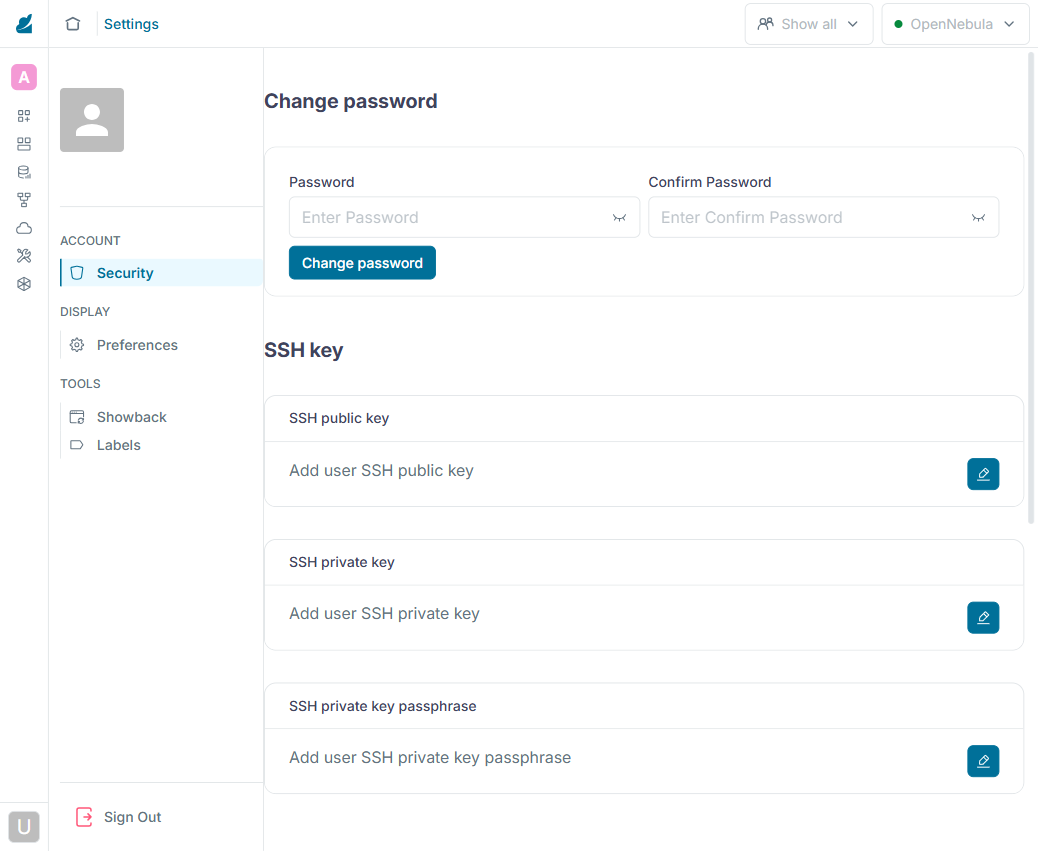
Add your SSH public key to your OpenNebula user. In Sunstone 7.4.1 (tested) it is under your avatar at the bottom left › Settings › Account › Security › SSH key › SSH public key (pencil icon). From the CLI, oneuser update <user> --append <file>, with a file containing SSH_PUBLIC_KEY="ssh-ed25519 ...", does the same.
Then instantiate the template from Sunstone, choosing the lan network. In the test the template was instantiated from the CLI (onetemplate instantiate <template> --nic <network>); a small Alpine VM went from prol to runn in about 20 seconds, got its IP from the network's address range through contextualization, and accepted SSH with the injected key.
If the VM stays PENDING, read SCHED_MESSAGE in onevm show <VMID> and the VM's log, /var/log/one/<VMID>.log. Tested on 7.4.1 with an unpinned VM on a host marked PINNED (NUMA step 3):
SCHED_MESSAGE="Fri Nov 27 04:20:34 2026: Cannot dispatch VM: No host meets SCHED_REQUIREMENTS"
AUTOMATIC_REQUIREMENTS="(CLUSTER_ID = 0) & !(PIN_POLICY = PINNED)"
# /var/log/one/<VMID>.log
[Z0][SCM][E]: Cannot dispatch VM: No host meets SCHED_REQUIREMENTS
The 7.4.1 scheduler source also contains the message Cannot dispatch VM to any Host. Check VM log for detailed reasons. (Scheduler.cc), but it did not appear in the test. In older releases the same problem looked like Cannot dispatch VM: No host meets capacity and SCHED_REQUIREMENTS: ... or Cannot schedule VM, there is no suitable system ds. (forum). Possible causes include: not enough free memory after RESERVED_MEM, an image and a system datastore with different transfer drivers, or a host and datastore in different clusters.
Four things the test found that are easy to miss#
All four were seen in the lab test described at the top (tested); the output below is from that run.
Security groups do nothing on a plain bridge network#
The bridged-networking page lists bridge as the mode where "no filtering is made" and fw as "Bridged with Security Groups" (bridged networking). What it does not stop is attaching a security group to a bridge network anyway: OpenNebula accepts the group on the network without a warning. In the test, a security group that allowed only inbound ICMP was attached to a VM on a VN_MAD = "bridge" network. SSH from another VM on the same network still connected:
# from the other VM: ping, then a TCP connection to port 22
2 packets transmitted, 2 packets received, 0% packet loss
SSH-2.0-OpenSSH_10.3
# on the node
sysctl: cannot stat /proc/sys/net/bridge/bridge-nf-call-iptables: No such file or directory
The node had no OpenNebula firewall rules, and the bridge driver's post-deploy step in 7.4.1 only sets up VLAN filtering. With VN_MAD = "fw" on the same bridge and the same security group, ping passed and SSH was dropped, and the node had per-VM chains:
-A INPUT -m physdev --physdev-in one-15-0 -j one-15-0-o
-A one-15-0-i -m state --state RELATED,ESTABLISHED -j RETURN
-A one-15-0-i -p icmp -j RETURN
-A one-15-0-i -j DROP
So if you rely on security groups, use fw (the security groups page notes they are not supported in the Open vSwitch modes), and test them with a real connection. The cost of fw on a one-box cloud: after the first fw deployment, br_netfilter was loaded and net.bridge.bridge-nf-call-iptables = 1 on the host. That is host-wide. On every bridge on the machine, including br0 with the host's own address and any VMs that OpenNebula does not manage, bridged IPv4 traffic is now passed to the iptables hooks (and, with the node package's sysctl file, IPv6 and ARP to ip6tables and arptables), so host firewall rules and firewalld's forwarding policy can now affect it. The node package's /etc/sysctl.d/bridge-nf-call.conf sets the same values. Check that the host and its other VMs still reach the network after the first fw VM starts.
Two smaller traps: --nic <network>:secgroups=<id> on onetemplate instantiate was silently ignored (the NIC got only the default group 0), and a network created with SECURITY_GROUPS = "100" was stored as "0,100". As the security groups page warns, the default group (ID 0) is added to every new network and allows all traffic, so it overrides your rules until you remove it. onevnet update <network> <file> --append, with SECURITY_GROUPS="100" in the file, left only group 100.
The marketplace shows 0 apps when IPv6 egress is broken#
On the test host the public marketplace listed no apps, and oned.log had a timeout:
# onemarket list
  ID NAME                  SIZE AVAIL        APPS MAD     ZONE STAT
   1 Linux Container         0M -               0 linuxco    0 off
   0 OpenNebula Publ         0M -               0 one        0 on
# grep MKP /var/log/one/oned.log
[Z0][MKP][E]: Error monitoring marketplace 0: /usr/share/ruby/net/http.rb:987:in `initialize': execution expired (Net::OpenTimeout) [...]
The host had a global IPv6 address and a router-advertised IPv6 default route, but outbound IPv6 was dropped further upstream. The marketplace monitor tried IPv6 and timed out, while IPv4 worked:
# curl -4 https://marketplace.opennebula.io/appliance  -> HTTP 200 in 2.0 s
# curl -6 https://marketplace.opennebula.io/appliance
curl: (28) Connection timed out after 15001 milliseconds
The right fix is to repair IPv6 egress, or to stop advertising an IPv6 route you cannot use. If you cannot change the network, an IPv4 proxy scoped to OpenNebula worked in the test: setting http_proxy and https_proxy in oned's environment. Create /etc/systemd/system/opennebula.service.d/proxy.conf with your proxy address:
[Service]
Environment=http_proxy=http://192.0.2.20:3128
Environment=https_proxy=http://192.0.2.20:3128
Environment=no_proxy=localhost,127.0.0.1
Then run systemctl daemon-reload and systemctl restart opennebula. After the next monitor cycle, the test marketplace listed 135 apps.
Push monitoring needs the node to reach the front-end on 4124#
Hosts send monitoring data to the front-end's onemonitord on port 4124. On one box that is local traffic. When the hypervisor is another machine (in the test, a VM on the same server), it has to reach the front-end on 4124. In the test it could not: the node's network was in firewalld's libvirt zone on the front-end, which only lets in a few services such as DHCP, DNS and SSH from guests, even though firewall-cmd --zone=libvirt --list-all shows target: ACCEPT:
# from the node
bash: connect: Connection refused     (/dev/tcp/<front-end>/4124)
The host still showed on, because the front-end restarts the node's monitor over SSH, but pushed data between restarts was lost. Open 4124 (TCP and UDP, per the front-end firewall table) from the node addresses in the zone that traffic arrives in.
Dashboard sizes, and the console error on a terminated VM#
The Sunstone dashboard's Images card showed 20.5 GB on datastores for three images whose files came to about 1 GB in total (the dashboard screenshot earlier). It adds up virtual sizes (10 + 10 + 0.5 GB). The SIZE column of oneimage list is virtual too; use qemu-img info or du for real use.
A console tab left open on a VM that has since been terminated shows Client error and the message Aborted. See logs., and the Registered: time under the VM name is the VM's end time. Nothing on the page says the VM is gone. onevm show gives STATE : DONE, and the console daemon logs guacd[...]: Internal VNC client disconnected. Close the tab.
The opposite also happens: a VM whose guest kernel had panicked still showed ACTIVE / RUNNING; the VM's lifecycle state does not notice a panicked guest (example in the host-passthrough section).
How do you create a NUMA-pinned VM with CPU passthrough and hugepages?#
This is where a two-socket server earns its place. The aim is a VM whose vCPUs and memory stay on one host NUMA node (on most servers without sub-NUMA clustering, one socket), uses the host CPU's full instruction set, and is backed by hugepages. Everything here comes from OpenNebula's virtual topology and CPU pinning guide unless noted.
Step 1: read the host's layout#
yum -y install numactl
lscpu | grep -i -E 'socket|numa|thread'
numactl -H
cat /sys/devices/system/cpu/cpu0/topology/thread_siblings_list
On a minimal install, add the tool first with yum -y install numactl. A two-socket server without sub-NUMA clustering shows NUMA node(s): 2 with memory on both nodes; with SNC or NPS enabled you will see more. If it shows one node, recheck Node Interleaving in the BIOS.
Step 2: allocate hugepages#
OpenNebula does not create hugepages; the host has to have them free. The Linux kernel documentation covers both methods (HugeTLB pages):
-
2 MB pages at runtime, per NUMA node (here 4096 pages, 8 GB, on each node). Run these as root, not as
oneadmin:echo 4096 > /sys/devices/system/node/node0/hugepages/hugepages-2048kB/nr_hugepages echo 4096 > /sys/devices/system/node/node1/hugepages/hugepages-2048kB/nr_hugepagesThis does not survive a reboot, and on a busy host the kernel may not find enough contiguous memory, so check
/sys/devices/system/node/node*/meminfoafterwards. -
1 GB pages at boot (here 16 GB in total; the kernel spreads them over the nodes):
grubby --update-kernel=ALL --args="default_hugepagesz=1G hugepagesz=1G hugepages=16"
reboot
The kernel also accepts a per-node form,
hugepages=0:8,1:8.
Then refresh OpenNebula's view of the host and check the NUMA HUGEPAGES table:
onehost forceupdate cloud1.lab.example
onehost show cloud1.lab.example
Tested inside the lab node, not on the bare-metal host: 2 MB pages at runtime on each node, and 1 GB pages at runtime on a freshly booted node, both worked. After onehost forceupdate, onehost show listed the pages per node and size:
NUMA HUGEPAGES

 NODE_ID SIZE     TOTAL    FREE     USED
       0 2M       256      256      0
       0 1024M    0        0        0
       1 2M       256      256      0
       1 1024M    1        1        0
Not tested: the boot-time grubby method. On a server that already runs VMs, check free memory per node first (numactl -H); it is often uneven, and the test host had about 58 GiB free on node 0 against 136 GiB on node 1.
Step 3: mark the host for pinned workloads, and understand what that does#
A host has a PIN_POLICY of NONE (default) or PINNED. Set it with onehost update cloud1.lab.example and add:
PIN_POLICY = "PINNED"
ISOLCPUS   = "0,128"
ISOLCPUS keeps those host CPUs out of VM pinning; on a one-box cloud, use them for the front-end, the database and the host OS. Pick a full core: both thread siblings from thread_siblings_list above. CPU 0's sibling is often not CPU 1. Tested (read-only) on the two-socket AMD EPYC test server (64 cores per socket, 256 logical CPUs). The command below prints the same values the test recorded, in a shorter format:
for c in 0 1 64; do echo "cpu$c: $(cat /sys/devices/system/cpu/cpu$c/topology/thread_siblings_list)"; done
cpu0: 0,128
cpu1: 1,129
cpu64: 64,192
So the first full core there is "0,128", as in the example above; "0,1" would take one thread from each of two different cores. Use your own server's numbers.
The quirk: once the host is PINNED, unpinned VMs can no longer run on it. In the 7.4.1 source, every VM without a pin policy gets the automatic requirement !(PIN_POLICY = PINNED), and every pinned VM gets (PIN_POLICY = PINNED) (VirtualMachine.cc, release-7.4.1). On a cloud with one host, that means every VM template needs a TOPOLOGY with a PIN_POLICY of CORE, THREAD or SHARED (NONE counts as unpinned; the check is in is_pinned() in VirtualMachineParser.cc), or the VM stays PENDING. The docs offer the option of a separate cluster for pinned hosts; with one server, plan your templates instead. Tested: an unpinned VM on a PINNED host stayed pending with AUTOMATIC_REQUIREMENTS="(CLUSTER_ID = 0) & !(PIN_POLICY = PINNED)" and the scheduler message shown in the first-VM section; a pinned VM got (PIN_POLICY = PINNED) and CPU equal to VCPU.
Step 4: the VM template#
A four-vCPU VM, one virtual socket, pinned to host threads, 2 MB hugepages, host CPU passthrough:
NAME      = "alma9-pinned"
VCPU      = "4"
MEMORY    = "4096"
CPU_MODEL = [ MODEL = "host-passthrough" ]
TOPOLOGY  = [ PIN_POLICY = "THREAD", SOCKETS = "1", HUGEPAGE_SIZE = "2" ]
DISK      = [ IMAGE = "alma9" ]
NIC       = [ NETWORK = "lan" ]
GRAPHICS  = [ LISTEN = "0.0.0.0", TYPE = "vnc" ]
CONTEXT   = [ NETWORK = "YES", SSH_PUBLIC_KEY = "$USER[SSH_PUBLIC_KEY]" ]
onetemplate create alma9-pinned.tpl
onetemplate instantiate alma9-pinned
What each part does, per the docs:
PIN_POLICY:COREgives each vCPU a whole physical core and leaves its sibling thread unused;THREADgives each vCPU one hardware thread;SHAREDgives the VM a set of host CPUs shared by its vCPUs;NONErequests no CPU pinning (hugepages or node affinity can still restrict where the vCPUs run). Pinned VMs getCPUset equal toVCPUautomatically, so with the defaultVMS_THREAD = 1there is no CPU overcommitment.SOCKETS: each virtual socket becomes a guest NUMA node. WithSOCKETS = "2"andVCPU = "8", OpenNebula generates twoNUMA_NODEentries and splits memory evenly. Let the scheduler pick cores and threads; setTHREADSonly if the guest software needs a fixed layout, because a VM asking for threads per core the host cannot provide staysPENDING.HUGEPAGE_SIZE: in megabytes, so2for 2 MB pages and1024for 1 GB pages. OpenNebula looks for a host with enough free pages of that size, close to the pinned vCPUs.MEMORY_ACCESS:sharedorprivate. The docs' complete example usessharedwith hugepages; leave it out unless a device such as virtiofs needs shared memory.NODE_AFFINITY: a lighter option that keeps a VM on one host NUMA node without reserving CPUs. It cannot be combined withPIN_POLICY.
Check the result:
onevm show <VMID>      # NUMA NODES and TOPOLOGY sections
virsh -c qemu:///system vcpuinfo one-<VMID>   # as root
Inside the guest, lscpu and numactl -H should show the layout you asked for.
Tested in the lab node (two NUMA nodes: CPUs 0–1 and 2–3), with a smaller version of this template (VCPU = "2", MEMORY = "512", an Alpine image, same TOPOLOGY). Each vCPU was pinned to one host thread, and memory was bound to the same node, backed by 2 MB pages:
# virsh -c qemu:///system vcpuinfo one-<VMID>
VCPU:           0
CPU:            2
CPU Affinity:   --y-
VCPU:           1
CPU:            3
CPU Affinity:   ---y
# virsh dumpxml one-<VMID>  (excerpt)
    <vcpupin vcpu='0' cpuset='2'/>
    <vcpupin vcpu='1' cpuset='3'/>
    <memnode cellid='0' mode='strict' nodeset='1'/>
The two-socket variant (SOCKETS = "2") also worked, but only after the fix in the next section. Not tested: the guest-side lscpu and numactl -H check (the Alpine test image had no numactl), and telling CORE and THREAD apart: the nested AMD guest reported one thread per core even when given two, so the lab could not show the difference.
If the host's NUMA layout changes, check OpenNebula's map#
The first two-socket run placed the VM wrong: one vCPU on host node 1, with its memory forced to node 0:
<vcpupin vcpu='0' cpuset='2'/>
<vcpupin vcpu='1' cpuset='3'/>
<memnode cellid='0' mode='strict' nodeset='1'/>
<memnode cellid='1' mode='strict' nodeset='0'/>
The host had been registered while the lab node had one NUMA node, and was then given two. oned kept its old core map (onehost show -x listed CPU 3 under node 0), and onehost forceupdate did not fix it. What fixed it in the test: undeploy the VMs on the host, onehost delete, then onehost create again. After that, each vCPU and its memory sat on the same host node, with 128 two-megabyte pages used on each node. On a real server, a likely trigger (not tested) is a BIOS change to NUMA presentation (node interleaving, AMD NPS or Intel SNC) after the host was added. After any such change, compare the core list in onehost show -x with lscpu before you start pinned VMs.
Why host-passthrough, and its cost#
The default KVM settings OpenNebula 7.4.1 ships in /etc/one/vmm_exec/vmm_exec_kvm.conf set the q35 machine type, but no CPU_MODEL (source). OpenNebula's own documentation says x86 OneKS nodes "boot with the default QEMU CPU", which lacks even x86-64-v2, and shows pods crashing with Fatal glibc error: CPU does not support x86-64-v2 until CPU_MODEL = [ MODEL = "host-passthrough" ] is added (CernVM-FS blueprint). The default x86_64 builds of AlmaLinux 10 and RHEL 10 need x86-64-v3 in the guest, so on the default CPU model they fail at boot.
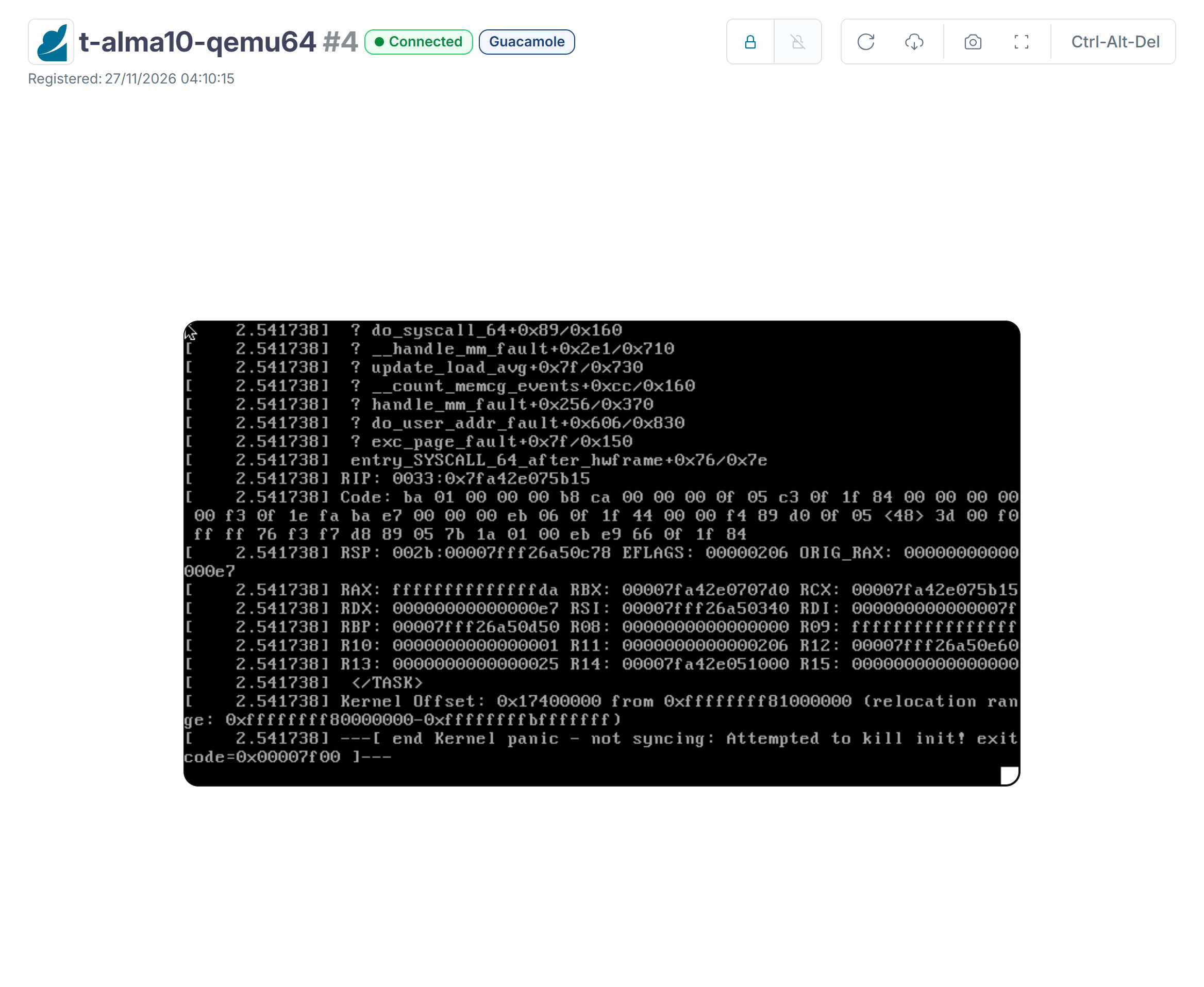
Tested: the marketplace AlmaLinux 9 and AlmaLinux 10 templates already set CPU_MODEL = [ MODEL = "host-passthrough" ], so VMs made from them boot (the AlmaLinux 10 guest, a 10.2 image, reported x86-64-v3 (supported, searched)). The failure hits hand-written templates without CPU_MODEL, like the one at the start of this section if you leave that line out. The test used the marketplace AlmaLinux 10 image in such a template. libvirt was given <model fallback='forbid'>qemu64</model>, and the guest panicked:
[    2.541738]  entry_SYSCALL_64_after_hwframe+0x76/0x7e
[    2.541738] Kernel Offset: 0x17400000 from 0xffffffff81000000 (relocation range: 0xffffffff80000000-0xffffffffbfffffff)
[    2.541738] ---[ end Kernel panic - not syncing: Attempted to kill init! exitcode=0x00007f00 ]---
The Fatal glibc error line had already scrolled off the 25-line VGA text console, so all you may see is the panic. Meanwhile onevm show still reported STATE : ACTIVE and LCM_STATE : RUNNING.
The test also confirmed the q35 default: libvirt was given machine type pc-q35-rhel9.8.0 on the AlmaLinux 9.9 node.
host-passthrough gives the guest the host's CPU model and flags. The cost, in the same OpenNebula page: it "prevents live migration between Hosts with different CPUs". If you plan a second, different server, use a named CPU model that every host lists instead. On one server, there is nowhere to migrate to, and pinned VMs cannot be live-migrated anyway; the NUMA guide says they need a power off and power on.
RAM settings you will touch#
MEMORYis in megabytes.- Resizing memory while running needs
MEMORY_MAXset before the VM starts;MEMORY_RESIZE_MODEis optional (HOTPLUGis the default,BALLOONINGthe alternative) but also has to be chosen before start (KVM driver). WithHOTPLUG, memory can only be removed in the same blocks it was added. - Asymmetric NUMA layouts need care. If a guest NUMA node ends up with no memory or no CPU, QEMU/libvirt refuse to start it, with errors such as
property 'size' of memory-backend-ram doesn't take value '0'orXML error: Missing 'cpus' attribute in NUMA cell(listed in the NUMA guide).
Error messages you will paste into a search box#
| Error text | What it usually means | Section |
|---|---|---|
Fatal glibc error: CPU does not support x86-64-v3 | The default AlmaLinux 10 build on a CPU without v3, or such a guest on the default QEMU CPU | AlmaLinux 10 or 9; host-passthrough |
Failed to open TCP connection to localhost:2633 (Connection refused ...) | The CLI cannot reach oned: usually the daemon is not running, otherwise the CLI endpoint is wrong | Install step 5; Sunstone quirks |
Error: listen EADDRINUSE: address already in use 0.0.0.0:2616 | Port 2616 already taken | Sunstone quirks |
Login page POST /fireedge/api/auth/ 500 | Read fireedge.error and oned.log; endpoint or package-version mismatches are possible causes | Sunstone quirks |
VM Group ID must be a string type | 7.4 Sunstone wizard known issue | Sunstone quirks |
Cannot dispatch VM: No host meets SCHED_REQUIREMENTS | Seen in the test for an unpinned VM on a PINNED host; other scheduling mismatches may give it too | First VM; NUMA step 3 |
Cannot dispatch VM to any Host. Check VM log for detailed reasons. | Same family; present in the 7.4.1 source, not seen in the test | First VM |
nothing provides libxmlrpc++.so.8()(64bit) needed by opennebula-7.4.1-1.el9.x86_64 | CRB is not enabled | Install step 1 |
Failed to connect socket to '/var/run/libvirt/virtqemud-sock': No such file or directory | The modular libvirt sockets are down; in the test, running systemctl restart libvirtd caused it | Install step 3 |
nginx: [emerg] unknown directive "ssl" | ssl on; copied into NGINX 1.25.1 or later (seen with 1.26.3; 1.20.1 only warns) | NGINX in front of FireEdge |
connect() to 127.0.0.1:<port> failed (13: Permission denied) while connecting to upstream | In the test, SELinux (httpd_can_network_connect off) and a 502 from the proxy; confirm with the AVC log | NGINX in front of FireEdge |
Console shows Tunnel error | In the test, the proxy was missing the WebSocket Upgrade/Connection headers; check the failed handshake | NGINX in front of FireEdge |
Console shows Client error, Aborted. See logs. | In the test, the VM had been terminated while its console tab was open; check the VM's state | Four things that are easy to miss |
Error monitoring marketplace 0: ... execution expired (Net::OpenTimeout) | The marketplace can't be reached, for example because IPv6 egress is broken | Four things that are easy to miss |
Kernel panic - not syncing: Attempted to kill init! exitcode=0x00007f00 while OpenNebula says RUNNING | Seen in the test with an AlmaLinux 10 guest on the default qemu64 CPU; check the CPU model first | Host-passthrough |
XML error: Missing 'cpus' attribute in NUMA cell | A guest NUMA node with no CPUs | RAM settings |
The NGINX lines were captured on AlmaLinux 9.9 (NGINX 1.20.1 and 1.26.3). Not tested: AlmaLinux 10.3.
What comes next in this series?#
This guide installs OpenNebula's packages as shipped. A later post will cover building OpenNebula from source for your own hardware, and what that does and does not change. Other planned chapters: a second host with shared storage, VLAN and VXLAN networks, and upgrades that keep nodes running. The earlier chapters are Proxmox VE, OpenNebula or Rancher? and running your own validating DNS resolvers; reliable name resolution matters for a setup that refers to hosts by name.
FAQ#
Can I run OpenNebula on a single server?#
Yes. The front-end and the KVM hypervisor can share one machine. The host must be able to SSH to itself as oneadmin, and you should reserve CPU and memory for the front-end.
Which AlmaLinux version should I use for OpenNebula 7.4?#
AlmaLinux 10.3 if the CPU supports x86-64-v3; AlmaLinux 9.9 if it supports x86-64-v2 but not v3. CPUs below v2 run neither. OpenNebula 7.4 certifies both.
Where is the OpenNebula Sunstone password?#
The initial password is in /var/lib/one/.one/one_auth on the front-end, in the form oneadmin:<password>. To change it later, run oneuser passwd 0 <password>, write the new value into one_auth, and restart opennebula.
What port does Sunstone use in OpenNebula 7?#
2616, at http://<frontend>:2616/fireedge/sunstone. Port 9869 belonged to the old Ruby Sunstone.
Should I use the local or the shared datastore driver?#
On one server, local, the default since 6.10.2. With several servers and an NFS share, shared avoids copying disks when VMs move.
What does host-passthrough do in OpenNebula?#
CPU_MODEL = [ MODEL = "host-passthrough" ] gives the VM the host's CPU model and features. It blocks live migration to hosts with a different CPU.
Why is my pinned or unpinned VM stuck in PENDING?#
A host with PIN_POLICY = "PINNED" accepts only VMs with a PIN_POLICY of CORE, THREAD or SHARED; a NONE host accepts only unpinned VMs (no PIN_POLICY, or PIN_POLICY = "NONE"). In the 7.4.1 test, that mismatch showed Cannot dispatch VM: No host meets SCHED_REQUIREMENTS. Also check free hugepages and reserved memory.
Why does the OpenNebula marketplace show 0 apps?#
In the test, the host had an IPv6 route but no working IPv6 egress, and the marketplace monitor timed out with Net::OpenTimeout. Fix IPv6, or give oned an IPv4 proxy (http_proxy and https_proxy) through a systemd drop-in.
Stuck? Send us your error output#
If a step in this guide fails for you, send the exact error text and what you ran. Paste the output of:
rpm -qa 'opennebula*' | sort
cat /etc/almalinux-release
sudo -u oneadmin onehost list
sudo -u oneadmin onedatastore list
tail -n 50 /var/log/one/oned.log
Remove passwords, tokens and public IP addresses before you send it. We read every submission and reply on a best-effort basis; there is no support contract or response time behind this form.
If you would rather have the server, the build and the runbook done for you, NG-NeXT does that as a turnkey service; the contact page is the place to start.
— Nishant Gauraw, Founder and CEO, NG-NeXT Tech
Sources#
OpenNebula 7.4 documentation (branch one-7.4-maintenance of OpenNebula/one-docs, read 26 Nov 2026):
- Platform notes: https://docs.opennebula.io/7.4/software/release_information/release_notes/platform_notes/
- CE repositories: https://docs.opennebula.io/7.4/software/installation_process/frontend_installation/opennebula_repository_configuration_ce/
- Database setup: https://docs.opennebula.io/7.4/software/installation_process/frontend_installation/database/
- Single front-end installation: https://docs.opennebula.io/7.4/software/installation_process/frontend_installation/frontend_install/
- KVM node installation: https://docs.opennebula.io/7.4/software/installation_process/cluster_installation/kvm_node_installation/
- FireEdge configuration: https://docs.opennebula.io/7.4/product/operation_references/opennebula_services_configuration/fireedge/
- FireEdge Sunstone: https://docs.opennebula.io/7.4/product/control_plane_configuration/graphical_user_interface/fireedge_sunstone/
- FireEdge for large deployments (reverse proxy): https://docs.opennebula.io/7.4/product/control_plane_configuration/large-scale_deployment/fireedge_for_large_deployments/
- Accessing VMs: https://docs.opennebula.io/7.4/product/virtual_machines_operation/virtual_machines/vm_access/
- Storage overview: https://docs.opennebula.io/7.4/product/cluster_configuration/storage_system/overview/
- Datastores: https://docs.opennebula.io/7.4/product/cluster_configuration/storage_system/datastores/
- Local datastore: https://docs.opennebula.io/7.4/product/cluster_configuration/storage_system/local_ds/
- NFS/NAS datastore: https://docs.opennebula.io/7.4/product/cluster_configuration/storage_system/nas_ds/
- Bridged networking: https://docs.opennebula.io/7.4/product/cluster_configuration/networking_system/bridged/
- Virtual networks: https://docs.opennebula.io/7.4/product/cluster_configuration/networking_system/manage_vnets/
- Security groups: https://docs.opennebula.io/7.4/product/virtual_machines_operation/virtual_machines_networking/security_groups/
- Virtual topology and CPU pinning: https://docs.opennebula.io/7.4/product/cluster_configuration/hosts_and_clusters/numa/
- KVM driver: https://docs.opennebula.io/7.4/product/operation_references/hypervisor_configuration/kvm_driver/
- Template reference (CPU_MODEL): https://docs.opennebula.io/7.4/product/operation_references/configuration_references/template/
- Overcommitment (RESERVED_CPU/MEM): https://docs.opennebula.io/7.4/product/cloud_system_administration/capacity_planning/overcommitment/
- Marketplace apps: https://docs.opennebula.io/7.4/product/apps-marketplace/managing_marketplaces/marketapps/
- Managing users (changing oneadmin credentials): https://docs.opennebula.io/7.4/product/cloud_system_administration/multitenancy/manage_users/
- CernVM-FS blueprint (default QEMU CPU, host-passthrough): https://docs.opennebula.io/7.4/solutions/integration_blueprints/cvmfs_proxy/
- miniONE evaluation guide: https://docs.opennebula.io/7.4/getting_started/install_opennebula/evaluation/deploy_opennebula_onprem_with_minione/
- Known issues: https://docs.opennebula.io/7.4/software/release_information/release_notes/known_issues/
- Resolved issues 7.4.1: https://docs.opennebula.io/7.4/software/release_information/release_notes/resolved_issues_741/
- Release schedule: https://github.com/OpenNebula/one/wiki/Release-Schedule
- CE 7.4.1 package listing: https://downloads.opennebula.io/repo/7.4/AlmaLinux/10/x86_64/
opennebula-node-kvm-7.4.1-1.el10install script (modular libvirt,virtqemud): https://downloads.opennebula.io/repo/7.4/AlmaLinux/10/x86_64/opennebula-7.4.1-1-amd64/opennebula-node-kvm-7.4.1-1.el10.noarch.rpm
OpenNebula source, tag release-7.4.1:
- https://github.com/OpenNebula/one/blob/release-7.4.1/src/vnm_mad/remotes/lib/no_vlan.rb
- https://github.com/OpenNebula/one/blob/release-7.4.1/src/vnm_mad/remotes/OpenNebulaNetwork.conf
- https://github.com/OpenNebula/one/blob/release-7.4.1/src/vm/VirtualMachine.cc
- https://github.com/OpenNebula/one/blob/release-7.4.1/src/vm/VirtualMachineParser.cc
- https://github.com/OpenNebula/one/blob/release-7.4.1/src/cli/onehost
- https://github.com/OpenNebula/one/blob/release-7.4.1/src/vmm_mad/exec/x86_64/vmm_exec_kvm.conf
- https://github.com/OpenNebula/one/blob/release-7.4.1/src/schedm_mad/remotes/rank/src/sched/Scheduler.cc
OpenNebula forum and issues:
- https://forum.opennebula.io/t/fresh-onprem-install-cannot-login-to-fireedge-sunstone/13366
- https://forum.opennebula.io/t/error-failed-to-open-tcp-connection-to-localhost-2633-connection-refused-connect-2-for-localhost-port-2633/13766
- https://forum.opennebula.io/t/cannot-dispatch-vm-no-host-meets-capacity-and-sched-requirements/13377
- https://forum.opennebula.io/t/vnc-server-disconnected-code-1006/3290
- https://github.com/OpenNebula/one/issues/6813
- https://github.com/OpenNebula/one/issues/7505
- https://github.com/OpenNebula/one/issues/7766
- https://github.com/OpenNebula/one/issues/8250
AlmaLinux and Red Hat:
- AlmaLinux release notes index: https://wiki.almalinux.org/release-notes/
- AlmaLinux 10.0 release notes (x86-64-v2/v3, re-added drivers): https://wiki.almalinux.org/release-notes/10.0.html
- AlmaLinux 10.3 and 9.9 announcement: https://almalinux.org/blog/2026-11-16-almalinux_103_and_99_stable/
- RHEL 10, Configuring a network bridge: https://docs.redhat.com/en/documentation/red_hat_enterprise_linux/10/network-configuring_a_network_bridge
- Server Fault, x86-64-v3 glibc error: https://serverfault.com/questions/1189245/kernel-panic-on-almalinux-vm-boot-in-virtualbox-attempted-to-kill-init-exitc
Hardware and other:
- Dell 12G BIOS tuning guide: https://downloads.dell.com/solutions/general-solution-resources/White%20Papers/12g_bios_tuning_for_performance_power.pdf
- Dell PERC 9 user's guide, switching to HBA mode: https://www.dell.com/support/manuals/en-us/poweredge-rc-h330/perc9ugpublication/switching-the-controller-to-hba-mode?guid=guid-1fcc87e1-d534-451a-9947-56f1175886c5&lang=en-us
- Linux kernel, HugeTLB pages (v6.12): https://www.kernel.org/doc/html/v6.12/admin-guide/mm/hugetlbpage.html
- NGINX changes (1.25.1,
ssldirective removed): https://nginx.org/en/CHANGES - Canonical MicroCloud documentation (structure reference only): https://documentation.ubuntu.com/microcloud/latest/microcloud/